MeshVault Connect
Send model downloads and creator packs straight into MeshVault.
MeshVault Connect links your browser to MeshVault. Save supported repository downloads with their page details attached, or bring creator packs in directly from Google Drive and Dropbox.
What it does
Cleaner downloads from model sites.
Without the extension, a downloaded archive is often just a filename in a folder. MeshVault Connect keeps the context around the model so the library remains searchable and useful later.
How it works
How the extension import works.
The extension watches supported model pages, prepares the page metadata, then attaches that metadata when a supported model file is downloaded.
Open a supported model page
MeshVault Connect reads useful page details in the browser, such as the model name, author, description, tags, thumbnails, and source URL.
Download the model file
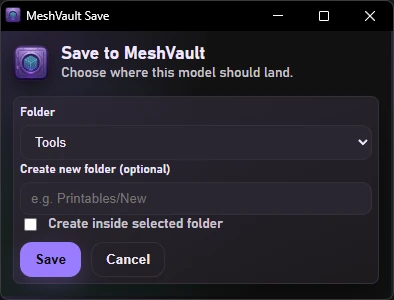
When a supported file or archive is downloaded, the extension holds the metadata temporarily and displays a small pop-up window.
Choose the destination
The pop-up reads the folders from your desktop app or connected MeshVault Server. Choose an existing folder or create the folder where you want the model placed.
Find it later in MeshVault
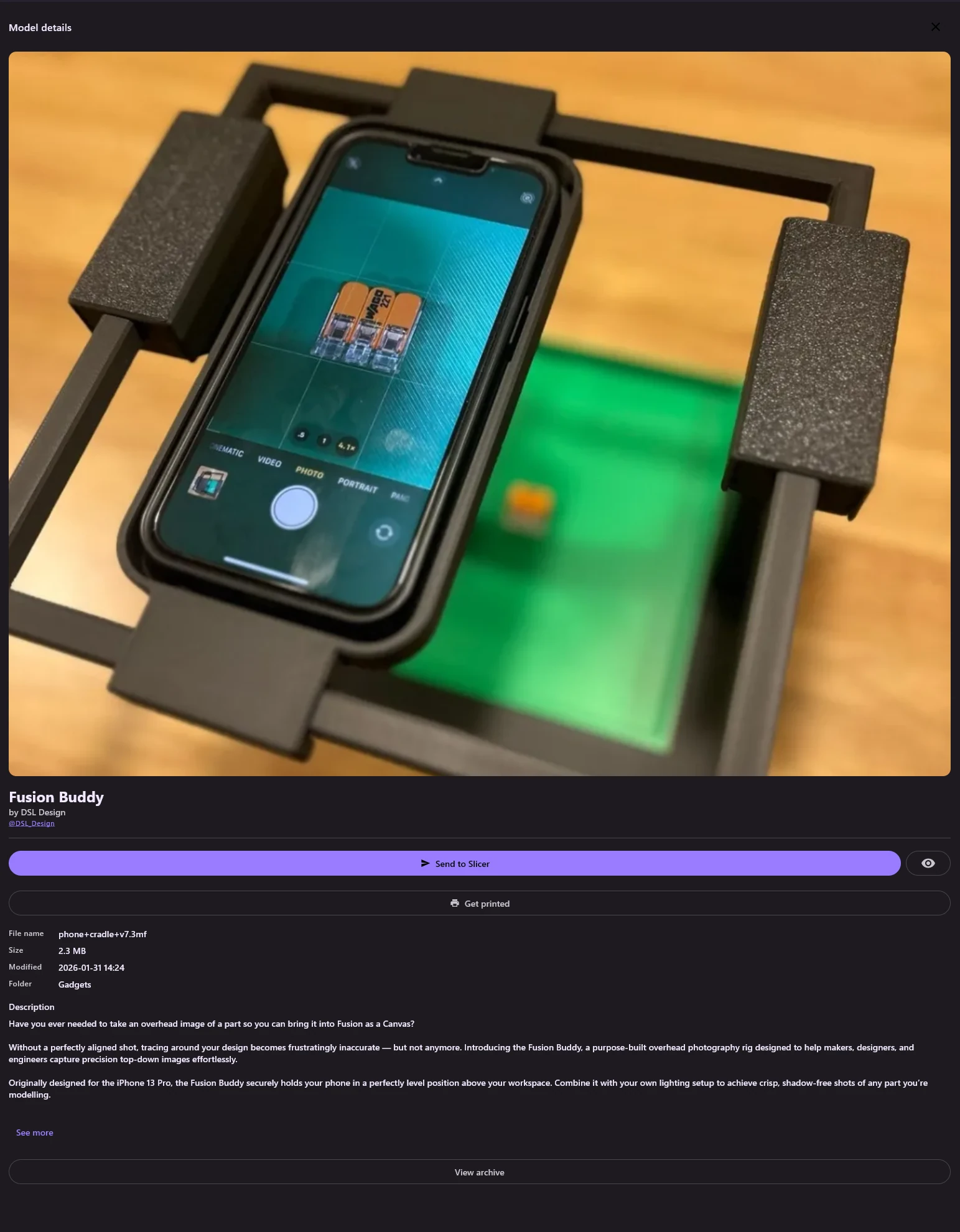
The imported model appears with searchable metadata, source links, images, and description content instead of becoming another anonymous download.
Owned and purchased models
Some sites split the model page from the download page.
Sites such as Cults3D and CGTrader can show the model details on one page, then provide the actual files from a separate purchases or downloads area. The extension is built around that flow.
Open the original model page first
Visit the public or owned-model page so MeshVault Connect can read the title, author, source URL, description, tags, and images. Check this page first because some sites provide another download route, such as the three-dot menu on Cults3D.
Then open your purchases or account downloads
Use the site's normal owned-model download page. The extension keeps the recent model-page context ready for the file download.
Download the correct file
When the downloaded archive or model file is captured, MeshVault imports it with the saved page details.
Check the imported source
If an owned-model page offers multiple files, as CGTrader can, confirm that the imported model matches the page details. MeshVault attaches the metadata available from the page, and private or account-only pages may expose less than public pages.
Guide video
Downloading from a model repository.
This short guide shows the browser-to-library path: opening a model page, downloading through MeshVault Connect, then seeing the imported metadata inside MeshVault.
Google Drive imports
Bring creator packs straight into MeshVault.
Open a model pack in Google Drive, choose Copy to MeshVault, then select the library folder where it belongs. Connect handles the import without leaving you to sort another anonymous archive from your downloads folder.
Supported sources
Built around common model repositories and creator-pack services.
Repository support depends on each site's page structure and download flow. Public model pages usually expose the most complete metadata, while Google Drive and Dropbox provide a direct path for creator packs you already own or have access to.






Controls and targets
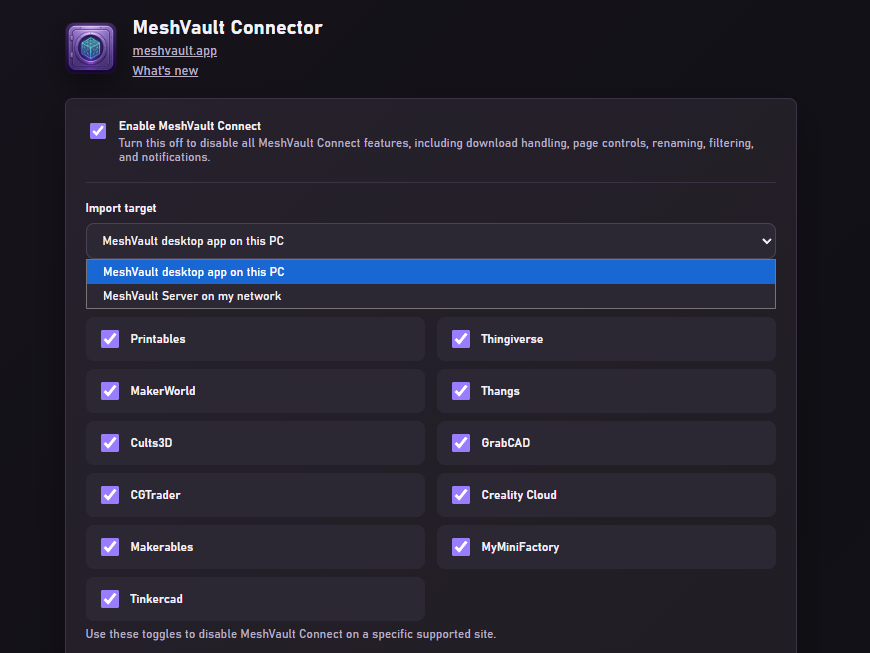
Choose what Connect captures and where it sends it.
MeshVault Connect handles supported downloads when you want it to, then sends them to the desktop app on this computer or a MeshVault Server on your local network.
- Enable or disable capture globally or for individual supported sites.
- Select reference PDFs with Dropbox imports to keep colour guides and instructions linked to your models.
- Choose the extra gallery image limit in the import prompt, with your choice remembered.
- Send supported files from Thingiverse, Printables, MakerWorld, Cults3D, and GrabCAD, plus Creality Cloud 3MF profiles, through the running desktop app to your slicer.
- Choose the local desktop app or a discovered MeshVault Server as the import target.
- Show progress and use normal browser downloads when MeshVault is unavailable.
- Hide selected MeshVault folders or subfolders from the Chrome, Edge, or Firefox destination picker.
- Enable detailed diagnostic logging only when troubleshooting an import.
- Reduce visual clutter on supported model pages so browsing stays focused.
- Server writes require the server to be unlocked.
- Remote targets stay local to your network; there is no MeshVault cloud in this workflow.
Privacy
Your downloads go to your MeshVault library.
MeshVault Connect exists to preserve useful download context locally. It does not upload your model files to MeshVault servers because there are no MeshVault cloud servers in this workflow.
- Model files are sent to your app or local server.
- Captured metadata is stored in your MeshVault library database.
- Source URLs are kept so you can find the original page again later.
Requirements
What you need installed.
- MeshVault desktop app or MeshVault Server installed and running.
- Chrome, Edge, or Firefox with MeshVault Connect installed, or the Safari extension bundled with MeshVault for macOS.
- A supported model site and download, or a creator pack available in Google Drive or Dropbox.
- For server imports, the server must be reachable on the same local network and unlocked for writes.